
Build with Cursor
Unlike Lovable, Cursor doesn't manage infrastructure for you — you run a local backend and frontend on your own machine, using one script to start everything. The whole flow is driven by a single chat command: build.
Prerequisites
- Cursor installed
- Docker (Compose v2 plugin or docker-compose) —
run.shcan install this for you if missing - Node.js 18+ — run.sh can install this for you if missing
- Your Volt sandbox or production credentials: API Key, User ID, Merchant ID
- Download the PROJECT.zip (Click Here).
Step 1 — Get the Project Files
Download PROJECT.zip and extract it. The project folder will look something like this after extracting it:
<PROJECT>/
├── .cursor/
│   └── volt-build-workflow.mdc
├── README.md
├── SETUP_GUARD.md
├── backend_prompt.md
├── frontend_prompt.md
└── run.sh
Open the extracted folder in Cursor.
Step 2 — Type build
buildIn the Cursor chat, type:
buildStep 3 — Confirm Plan Mode
Cursor will ask you to switch to Plan mode first — prompt files can't switch modes automatically, so you'll need to click manually or If you're already in Plan mode, select "I'm in Plan mode - continue"
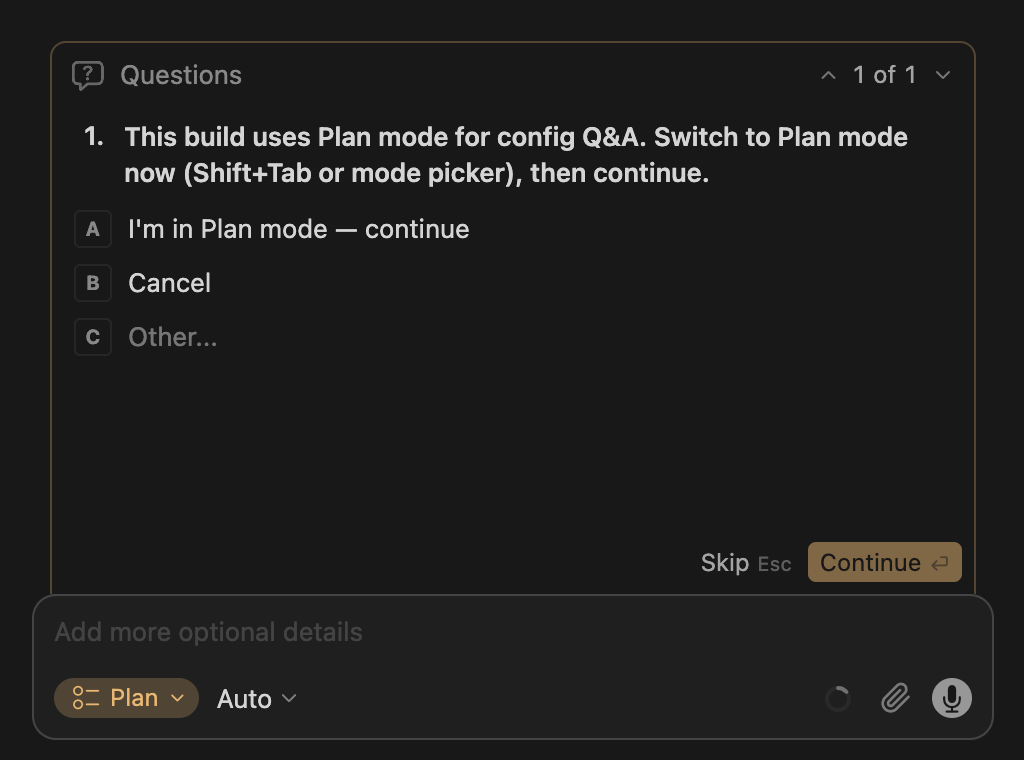
Step 4 — Answer the Setup Wizard
Cursor will ask a series of questions in order, one at a time:
| Question | What it's for |
|---|---|
| Provide Volt API credentials now, or skip? | If yes, paste API Key, User ID, Merchant ID in chat when asked |
| Enable file logging? | Optional — defaults to off |
| Ship logs to Elasticsearch? | Only asked if logging is on; local Docker, remote, or skip |
| Save booking data in MongoDB? | Optional — if yes, you'll also give a Mongo URI and DB name |
| Backend and frontend, or backend only? | Choose Backend and frontend for the full app |
If you skip the credentials step, hotel search and booking won't work until you run configure env later to add them.
Step 5 — Click Build
Once the Cursor AI finishes, it shows a plan summarizing your answers. Click Build, and it scaffolds the backend and frontend, end to end without asking for approval on every step.
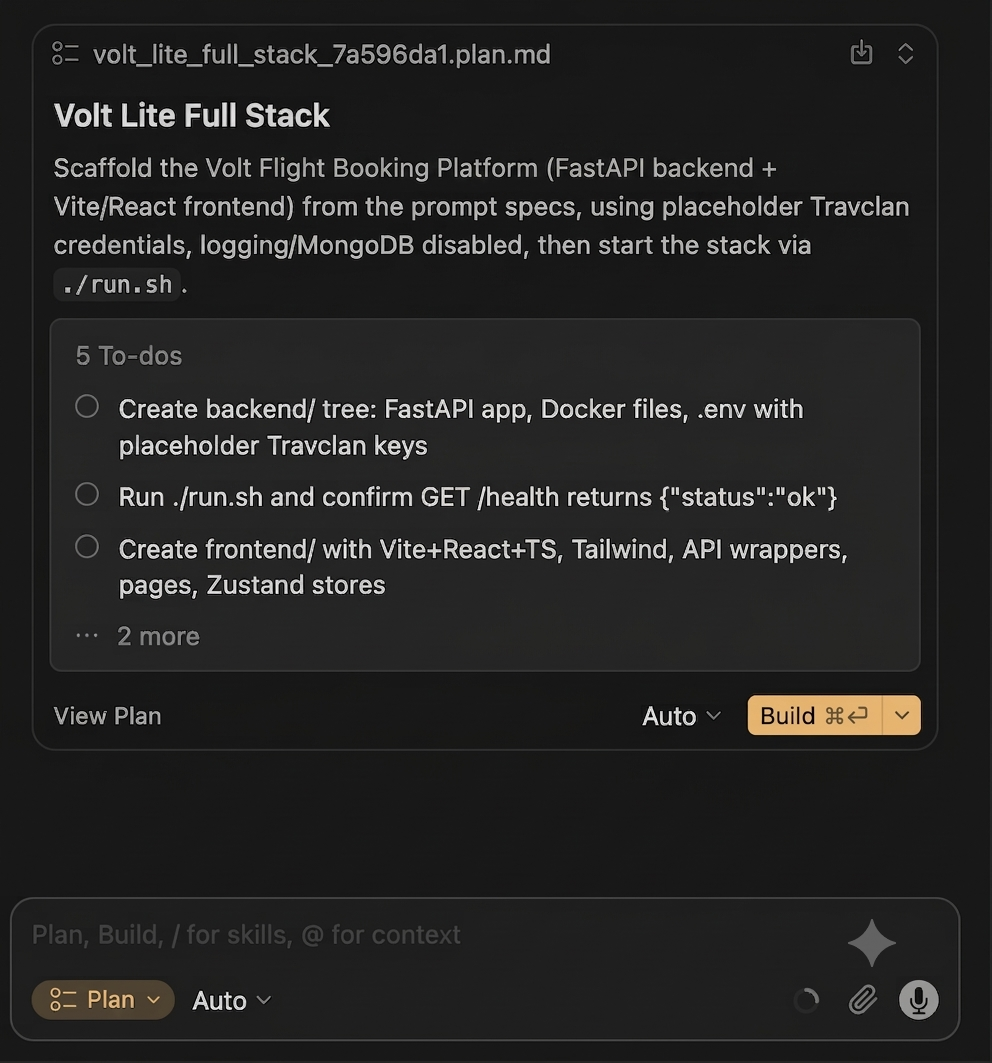
Step 6 — Run It
From the repo root, in your terminal:
./run.shThis starts the backend and frontend together (backend only if you chose backend-only in Step 4), and streams logs in the same terminal.
| Service | URL |
|---|---|
| App | http://localhost:5173 |
| API docs | http://localhost:8000/docs |
| Health check | http://localhost:8000/health |
Everyday Use
Once it's built, you don't repeat the wizard — just use the script:
./run.sh          # start backend + frontend
./run.sh stop     # stop everything
./run.sh health   # quick API check
./run.sh logs     # tail backend logs (second terminal)
./run.sh status   # ports + containers + Node version
Step 7 — Deploy to Vercel (Optional)
When you're ready to put the website online, type in the Cursor chat:
deploy appCursor deploys the app to Vercel as two separate projects:
| Project | What it contains |
|---|---|
| Backend | The API and all secrets (Volt API Key, User ID, Merchant ID, MongoDB URI) |
| Frontend | The website, with only the VITE_* values (API URL, name and colours); never any secret |
Before deploying, Cursor checks that:
- your Volt credentials are real values, not placeholders,
- the app is running locally and healthy (./run.sh health),
- the frontend builds.
If any check fails, it stops and tells you what to fix. During the deploy, Cursor may ask you for:
1. A public MongoDB connection string, if you chose to save bookings. The local Docker MongoDB can't be used on Vercel (e.g. MongoDB Atlas, mongodb+srv://…).
2. Your Vercel login, if you aren't logged in yet.
After the deploy, Cursor sets CORS on the backend and shows the website and API URLs.
Troubleshooting
Refer to the troubleshooting page if you encounter any issues after building your application with Cursor.
Updated 4 days ago